You Don't Need a Fax Machine
You need to send a fax, but you don't have a fax machine. Maybe you don't even have a computer nearby. The good news: your phone is all you need. Whether you're on an iPhone or Android, you can send a fax in minutes using nothing more than your phone's browser. No app to download, no account to create, no subscription to manage.
This guide walks you through the entire process, from preparing your document to confirming delivery. Whether you're faxing a signed contract, a medical form, or a government application, your phone can handle it.
How to Send a Fax from Your Phone Without an App
The fastest way to send a fax from your phone is through an online fax service like unofax. There's nothing to install. It works directly in Safari, Chrome, or any mobile browser.
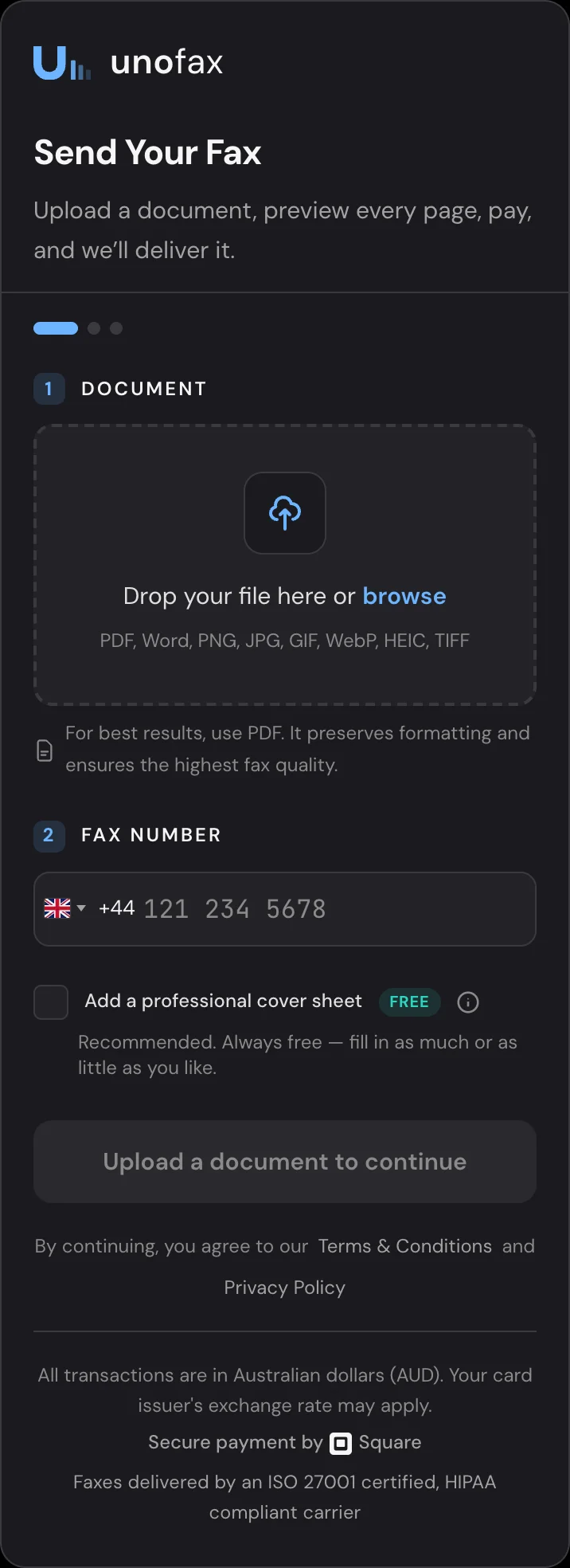
Here's how it works:
- Open your browser and go to unofax.com.
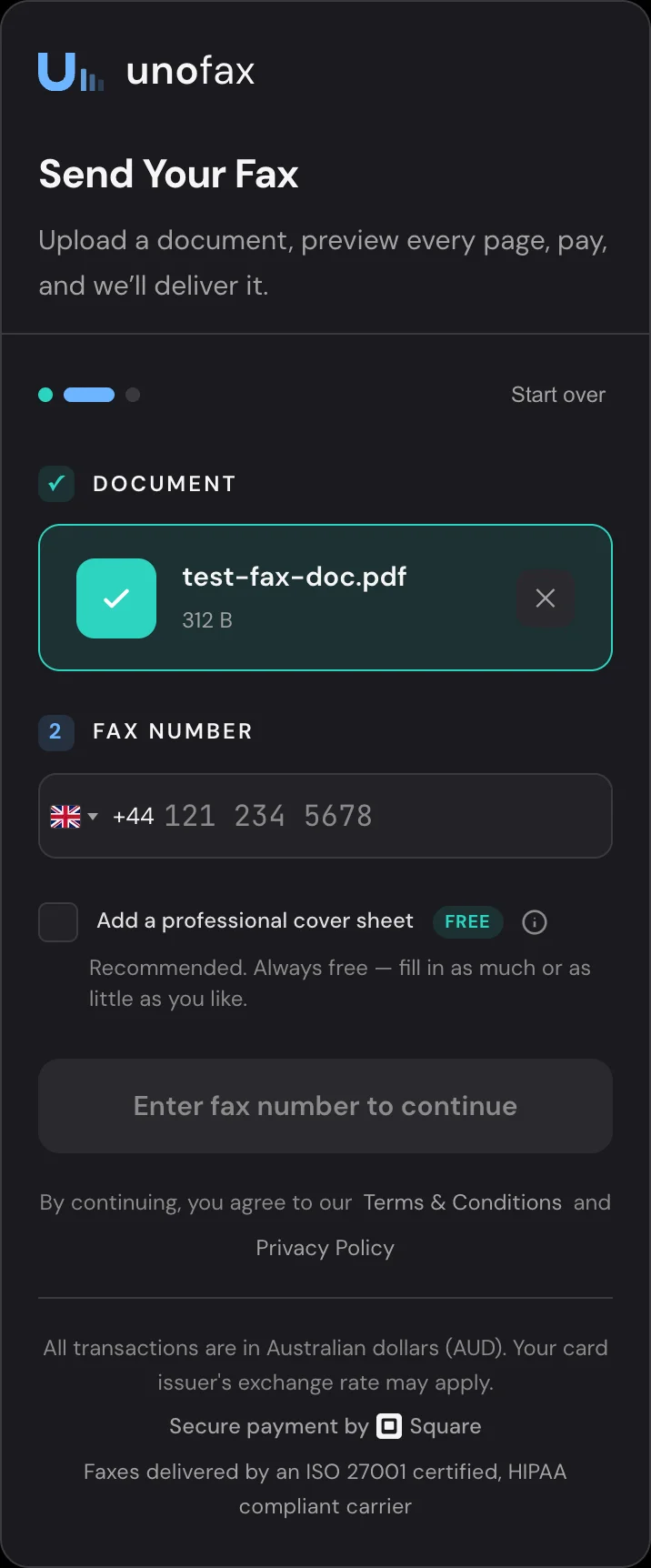
- Upload your document. Tap the upload area and select a file from your phone, like a PDF, Word document, image, or other supported format.
- Enter the destination fax number. Select the country and type in the number. The country code is added automatically.
- Pay per page. unofax charges a flat $0.39 AUD per page. No subscription, no hidden fees.
- Hit send. Your fax is transmitted and you'll receive a confirmation. Check your delivery status at any time.
The whole process takes about two minutes. Because there's no account required, you can send a fax right now without signing up for anything.
Option 2: Scan and Fax a Physical Document
If your document exists on paper (a signed form, a handwritten letter, or a printed contract), you'll need to scan it first. Your phone's camera can do this without any extra apps.
- iPhone: Open the Notes app, tap the camera icon, and choose "Scan Documents." The app automatically detects edges, corrects perspective, and enhances contrast.
- Android: Open Google Drive, tap the "+" button, and select "Scan." The app works similarly, straightening the page and adjusting brightness.
For the best results, scan in a well-lit area with even lighting. Place the document on a flat, contrasting surface (a dark desk for white paper). Avoid shadows. Overhead lighting or natural daylight works best.
Save your scan as a PDF, then upload it to unofax through your browser. For a detailed walkthrough with tips on getting the clearest scan, see our scan document guide.
Choosing the Right File Format
PDF is the best format for faxing. It preserves your document's layout, fonts, and formatting exactly as intended. Most phone scanners save as PDF by default, which is ideal.
unofax also supports Word documents, Excel spreadsheets, PNG, JPG, TIFF, and more. If you have a Word document on your phone, you can upload it directly, or use our Word-to-PDF converter to preview the result before sending. Check the full list of supported file formats for details.
If you're faxing a photo or scanned image, make sure it's high resolution. Blurry or low-contrast images produce poor fax output. Black text on a white background always works best.
Adding a Cover Sheet
A fax cover sheet is the first page of your fax. It identifies who the fax is from, who it's for, and how many pages to expect. In business, legal, and medical contexts, a cover sheet is standard practice because it helps the recipient route your document to the right person.
unofax lets you generate a cover sheet as part of the sending process. If you're faxing to a recipient in another country, you can use our multilingual cover sheet to include details in their language. This is useful when faxing to Japan, Germany, France, or other non-English-speaking destinations.
Sending to International Numbers
Sending a fax internationally from your phone is just as easy as a domestic fax. The key is getting the number format right. Every country has a code, like +1 for the US, +44 for the UK, +81 for Japan, +49 for Germany, and so on.
With unofax, you select the destination country from a dropdown and the code is added automatically. You just enter the local number. No need to remember dialing prefixes or worry about trunk codes.
For country-specific formatting tips, check our dedicated guides: USA, UK, Japan, Germany, Australia, France, and Israel. For a complete guide to international faxing, see our post on how to send international faxes online.
Scheduling for the Right Time Zone
If you're sending a fax to another time zone, timing matters. The receiving fax machine needs to be powered on, and if you're faxing a business, you'll want to send during their working hours.
unofax lets you schedule your fax to go out at a specific time. This is especially useful when faxing from your phone on the go, so you can prepare and schedule the fax now, and it will be delivered when the recipient's office is open.
Quick Checklist
Before you send, run through this list:
- Document is saved as a PDF (or a supported format)
- Text is black on a white background for maximum clarity
- Scanned pages are sharp, well-lit, and properly aligned
- Fax number includes the correct country code
- Cover sheet is attached if needed for business or legal contexts
- Fax is scheduled for the recipient's business hours if sending internationally
That's it. No fax machine, no computer, no app to install. Just open your phone's browser, go to unofax.com, and send your fax. It takes less time than reading this article did.